Message actions
There are many ways to interact with a Zulip message. Here’s an overview of the message actions in the web and desktop apps:
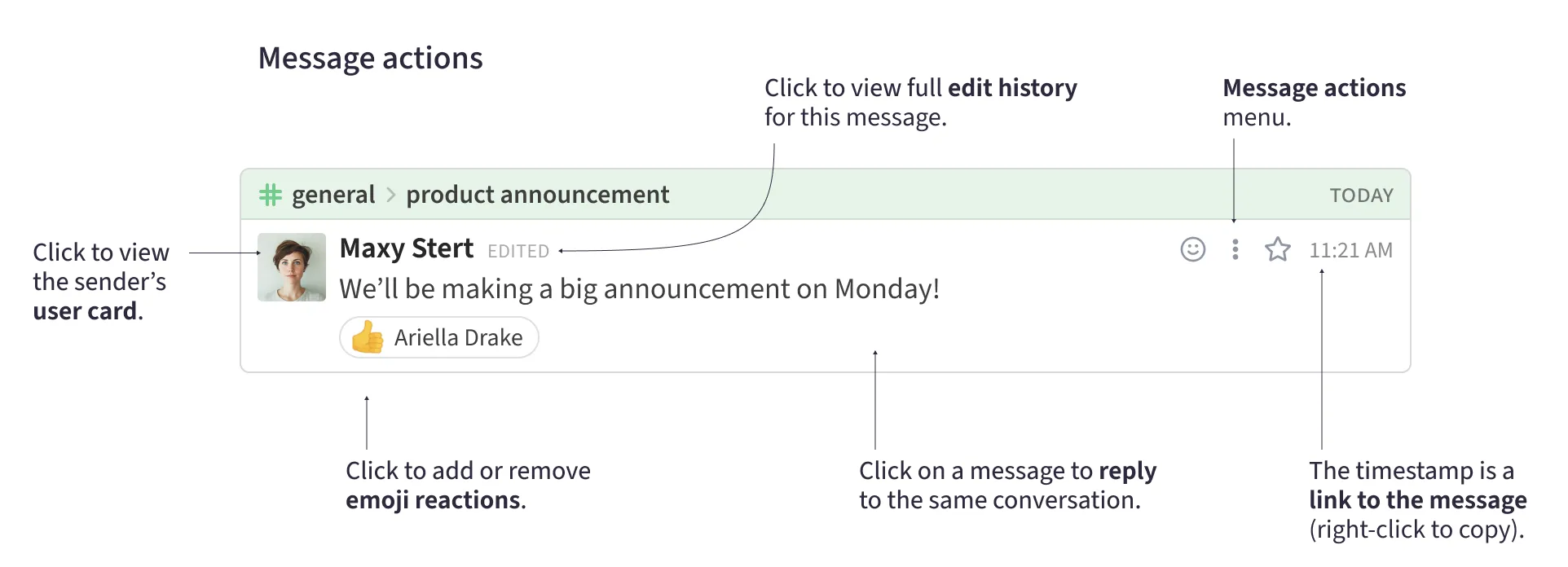
In the mobile app, the message actions menu lets you:
- Add a reaction.
- Star the message.
- Quote the message.
- Copy message content in Markdown, or share it to other apps.
- Copy a link to the message.
Open the message actions menu
Section titled “Open the message actions menu”- Hover over a message to reveal three icons on the right.
- Click on the ellipsis ().
- Press and hold a message until the long-press menu appears.
Open the message actions menu by right-clicking
Section titled “Open the message actions menu by right-clicking”You can configure Zulip to open the message actions menu, instead of your browser’s menu, when you right-click on a message. Your browser’s menu will still open when you right-click on a link, an image, selected text, or anywhere outside the message’s content. It will also open when you right-click on a different message while you have message text selected.
If you’ve selected text in a message, right-clicking elsewhere in that message opens the message actions menu, ready to quote your selection.
- Go to Preferences.
- Under Navigation, toggle Right-click on a message opens the message actions menu, as desired.